Articles in this section
All payments for casework processed in the Envoy Global platform can be made in the Billing Center. Acceptable payment methods include credit card, ACH transfer, and check.
Account Permissions: Company users (Company Administrators and Division Administrators)
To make a payment, follow the below steps:
-
Navigate to the Billing Center by clicking the profile icon in the top right corner on any page in the Envoy Global platform. Then, select Billing and Payments.
- Select the billing account you would like to make payment on. The billing accounts are split up by division, so you'll need to choose the division which the outstanding payment falls under. 💡If you don't select a billing account, you may not see any outstanding balances.
- Select the checkbox on the left side of the page to select the balances you'd like to make payment on. Use the search bar at the top of the page to search for an employee name or invoice number.
- Click Make a Payment in the top right corner of the page.
- Use the below guide to make payment based on your preferred method.
Pay by credit card
To make a payment by credit card, ensure the payment method: credit card is selected and then input the card details. Once all of the card detail fields are sufficient, the button to Submit Payment will appear. 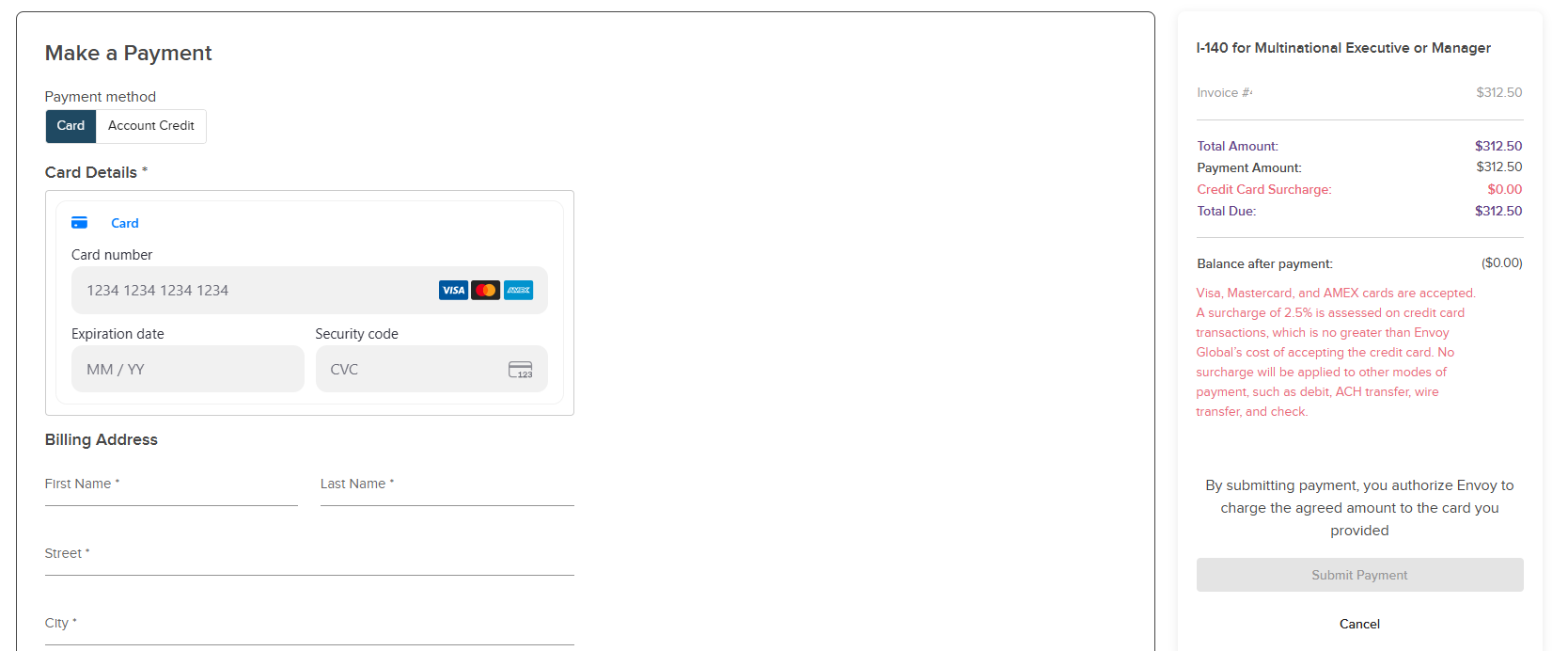
Pay by account credit
To pay by account credit, ensure the payment method: account credit is selected. The account credit funds associated with that division will appear, if any are available. You can choose how much to pay by account credit and then the button to Submit Payment will appear.
Learn more about company account credits
⟶
Pay by wire transfer or check
To pay by wire transfer or check, follow the instructions at the bottom of your invoice. 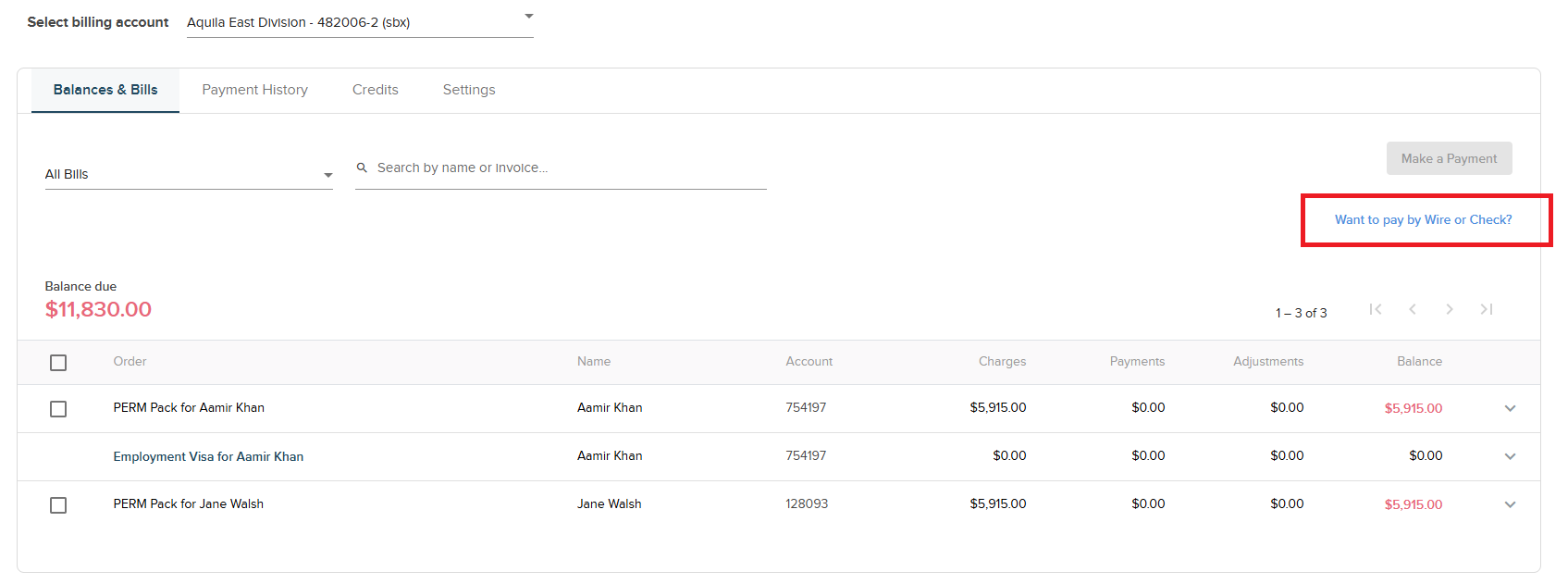
Learn more about downloading invoices and receipts
⟶